User Guide — دليل المستخدم
01
Add Medicine Manually
إضافة دواء يدوياً
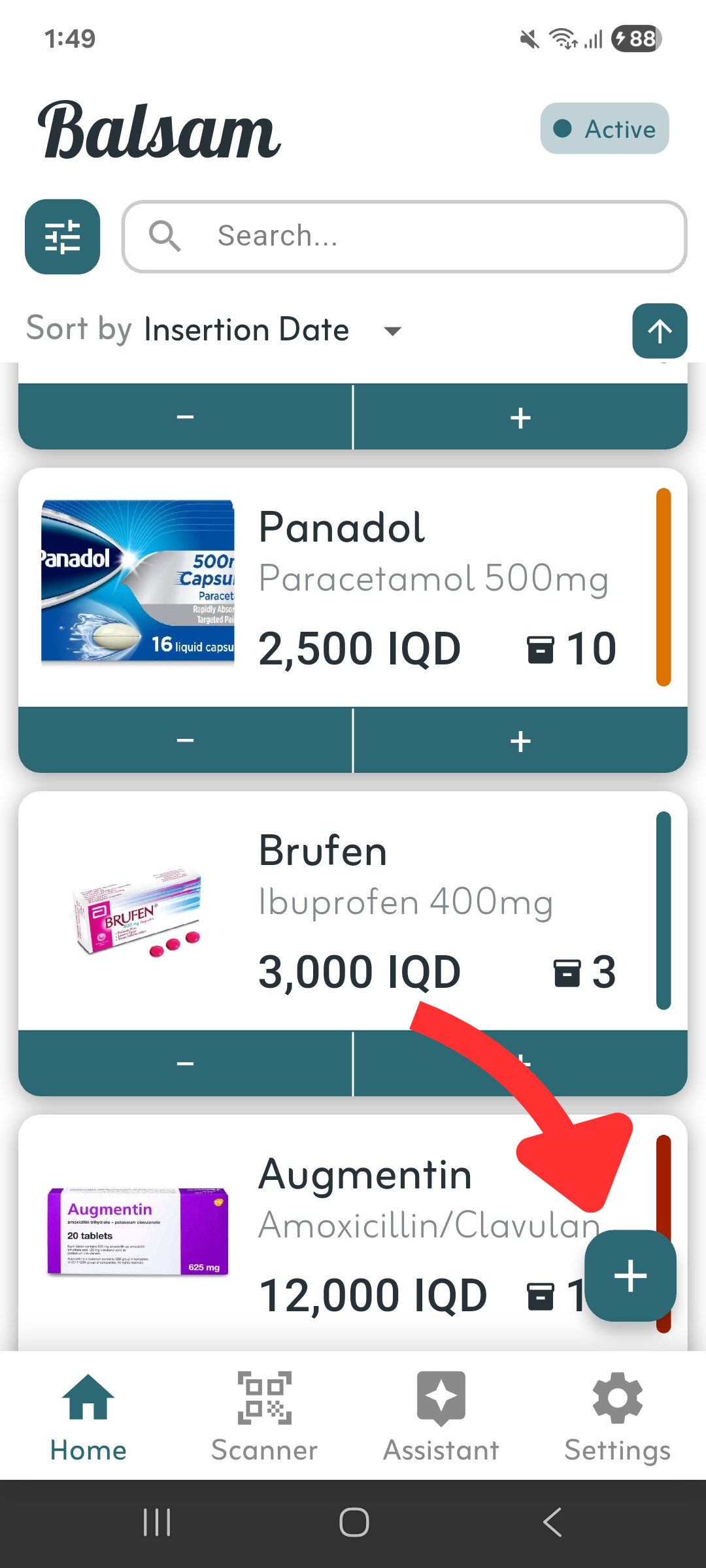
Tap the + button at the bottom right of the home screen to open the medicine entry form. Fill in the details and tap Create.
اضغط على زر + في أسفل يمين الشاشة الرئيسية لفتح نموذج إدخال الدواء. أدخل التفاصيل واضغط على إنشاء.
02
Search Your Inventory
البحث في المخزون
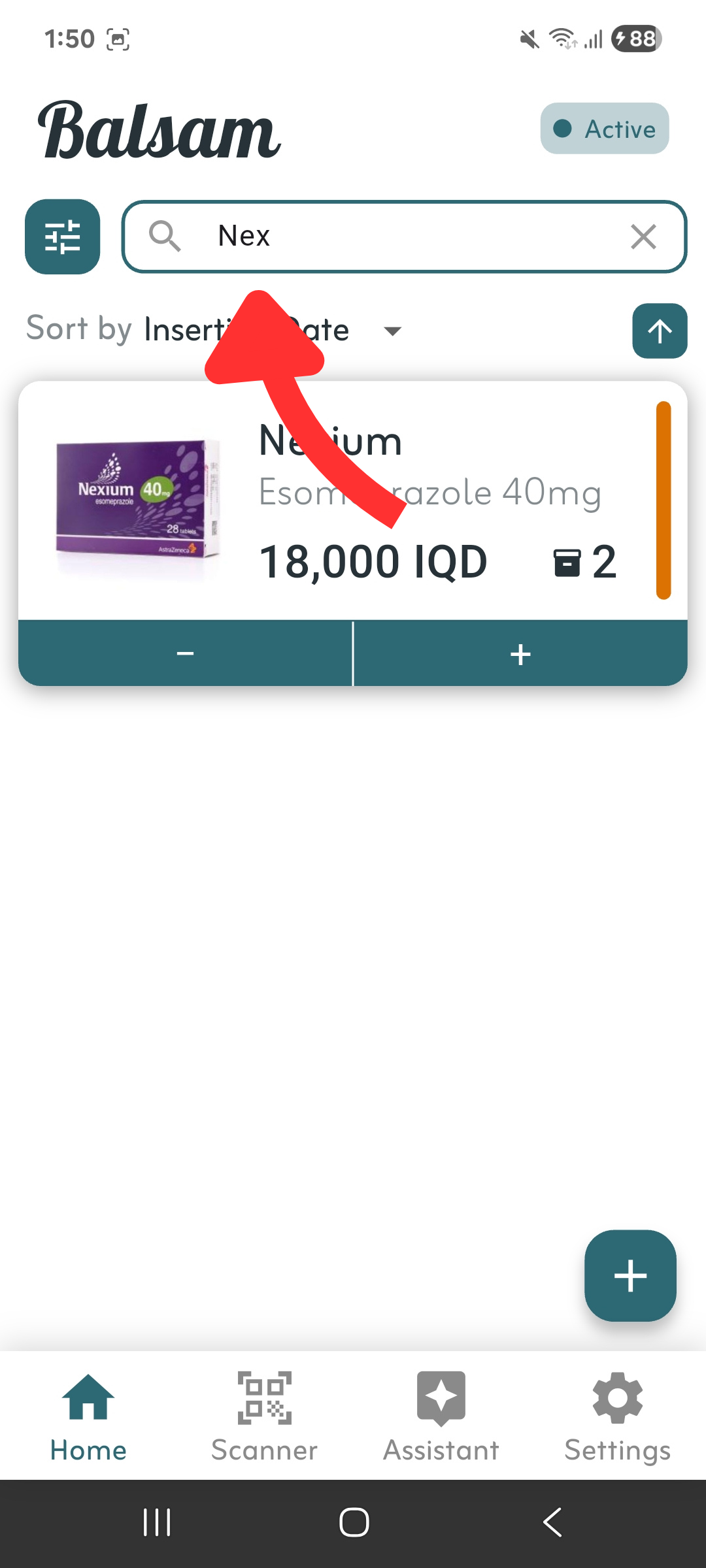
Use the search bar at the top of the home screen to find any medicine by brand name or scientific name instantly.
استخدم شريط البحث في أعلى الشاشة الرئيسية للعثور على أي دواء باسمه التجاري أو العلمي فوراً.
03
Sort Your Inventory
ترتيب المخزون
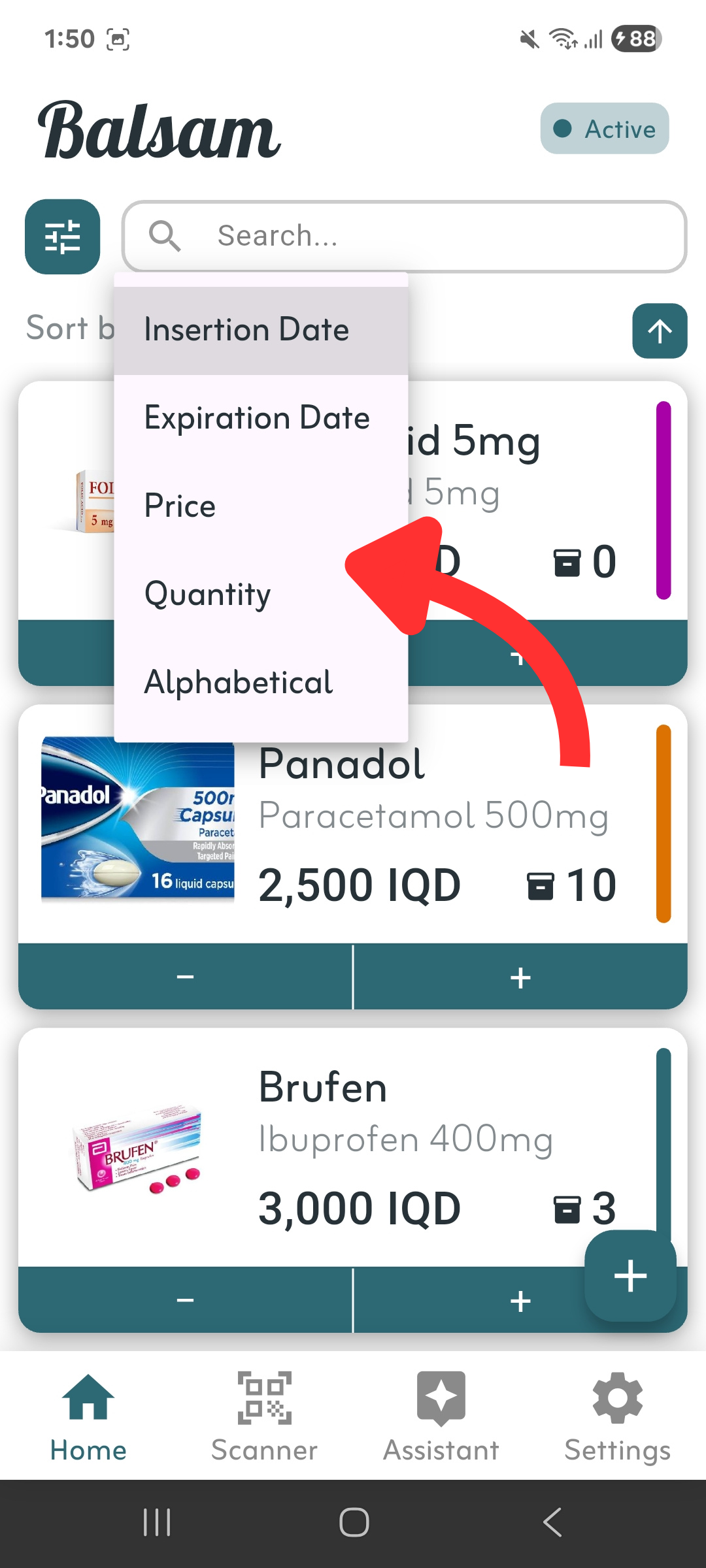
Use the Sort by dropdown to order medicines by insertion date, expiration date, price, quantity, or alphabetically. Tap the arrow to toggle ascending or descending order.
استخدم قائمة الترتيب لترتيب الأدوية حسب تاريخ الإدخال أو الانتهاء أو السعر أو الكمية أو الاسم. اضغط على السهم للتبديل بين التصاعدي والتنازلي.
04
Filter Your Inventory
تصفية المخزون
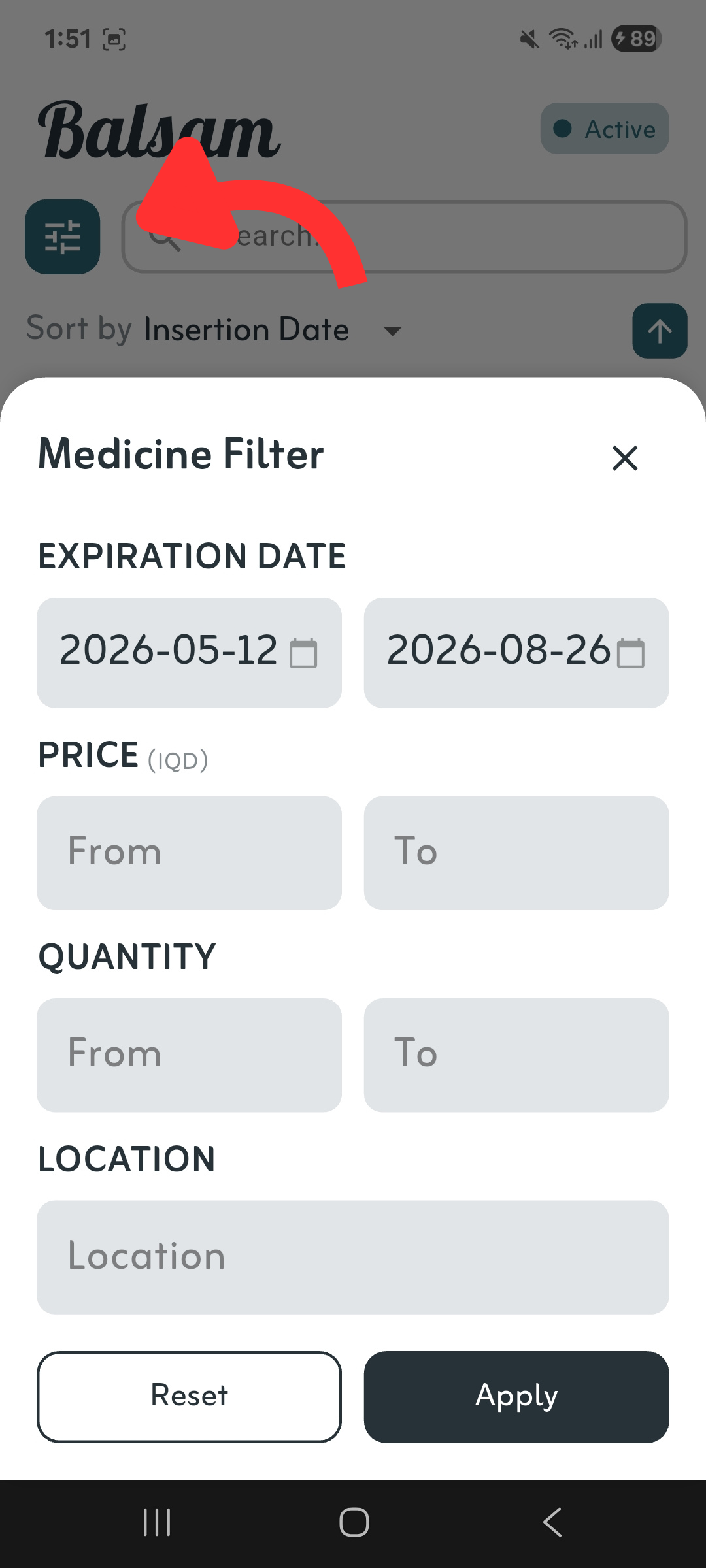
Tap the filter icon next to the search bar to filter medicines by expiration date range, price range, quantity range, or location.
اضغط على أيقونة التصفية بجانب شريط البحث لتصفية الأدوية حسب نطاق تاريخ الانتهاء أو السعر أو الكمية أو الموقع.
05
Scan Medicine QR Codes
مسح رموز QR للأدوية
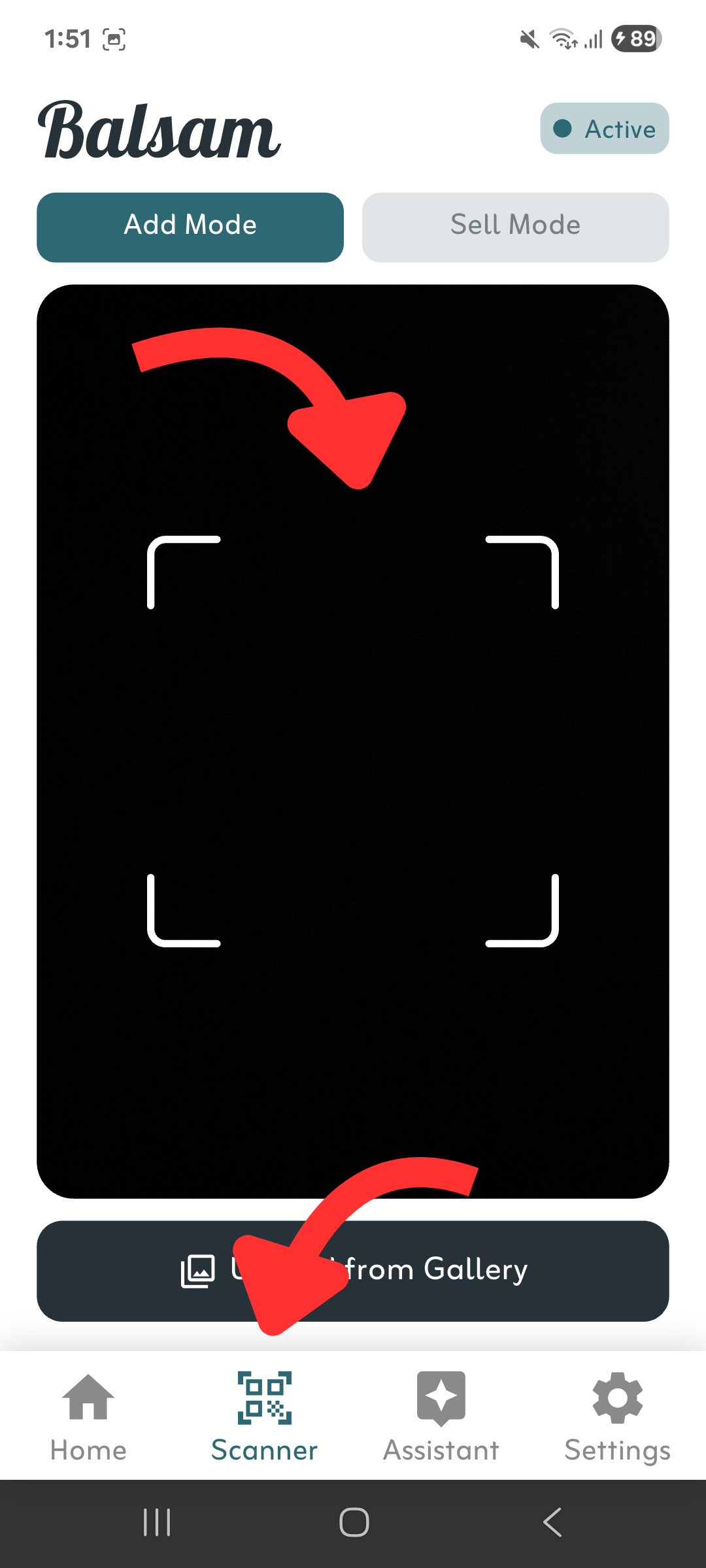
Go to the Scanner screen and point the camera at any Iraqi medicine QR code. The app will automatically look up the medicine details and pre-fill the entry form for you.
انتقل إلى شاشة الماسح ووجّه الكاميرا نحو رمز QR لأي دواء عراقي. سيقوم التطبيق تلقائياً بالبحث عن تفاصيل الدواء وملء النموذج مسبقاً.
06
Quick Sell Medicine
البيع السريع
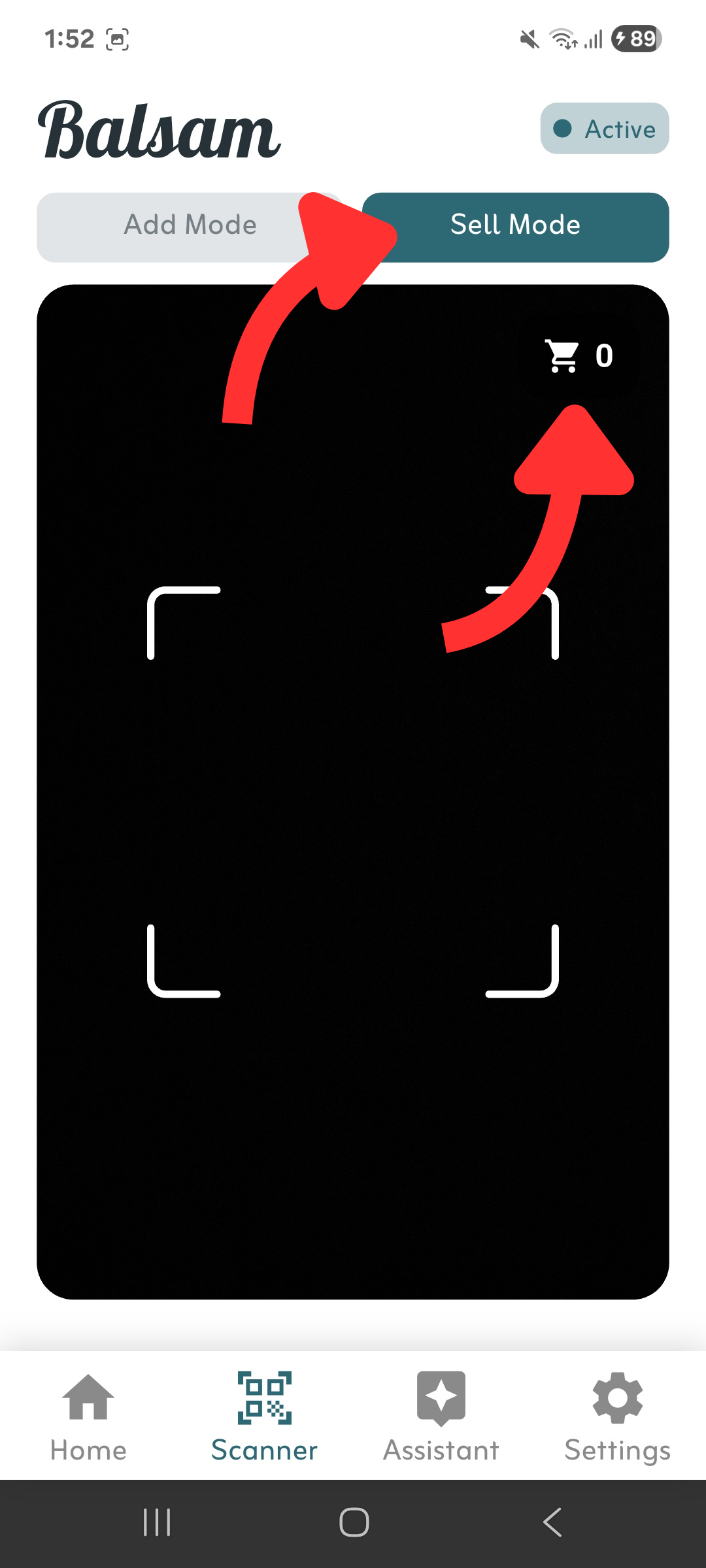
Switch to Sell Mode in the Scanner screen. Scan medicines to add them to your cart, adjust quantities, then tap Confirm Sale to automatically update your inventory.
بدّل إلى وضع البيع في شاشة الماسح. امسح الأدوية لإضافتها إلى سلة المشتريات، اضبط الكميات، ثم اضغط على تأكيد البيع لتحديث مخزونك تلقائياً.
07
Chat with the AI Assistant
التحدث مع المساعد الذكي
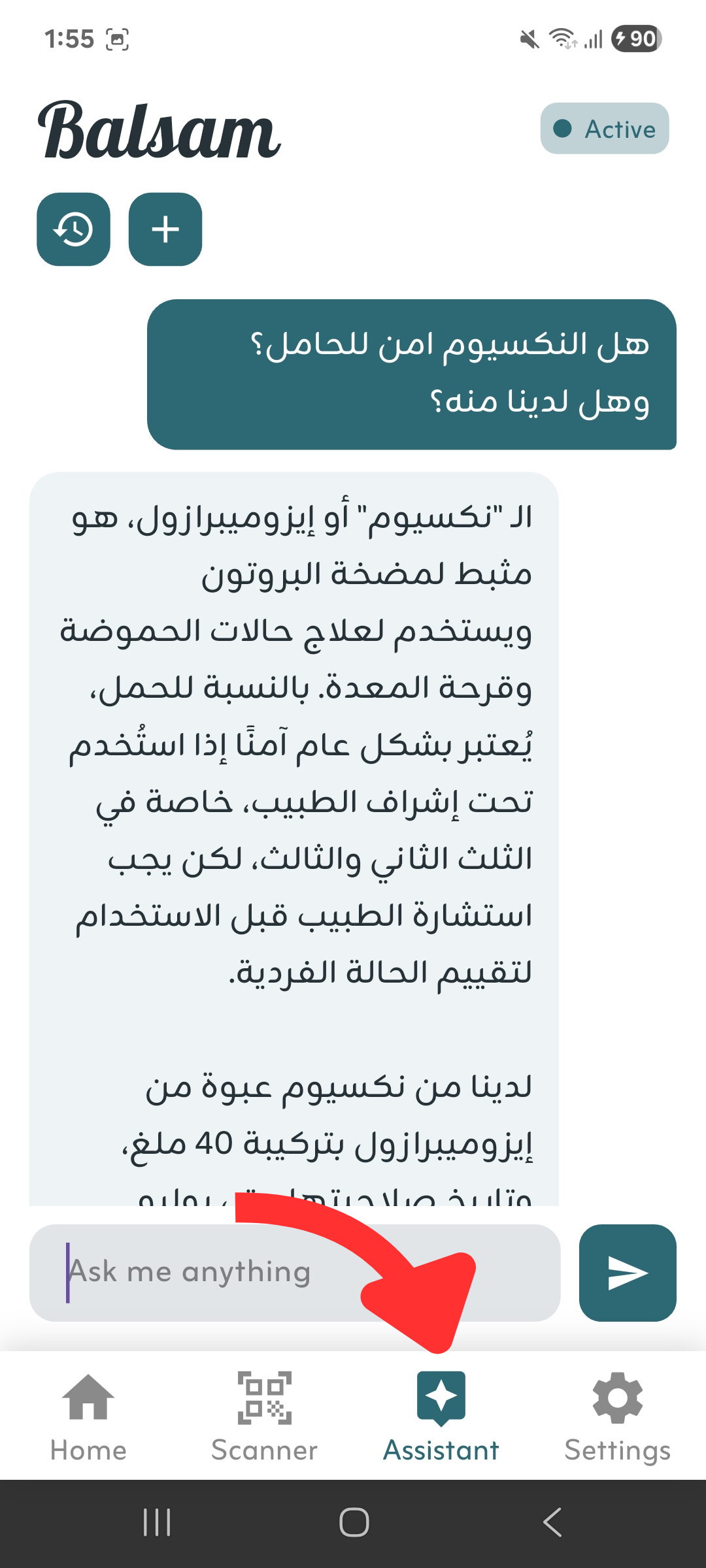
Go to the Assistant screen and type any question about your medicines, inventory, or pharmaceutical advice. The AI has full access to your inventory to give accurate answers.
انتقل إلى شاشة المساعد واكتب أي سؤال حول أدويتك أو مخزونك أو الاستشارات الدوائية. يتمتع المساعد بوصول كامل إلى مخزونك لتقديم إجابات دقيقة.
08
Review Old AI Chats
مراجعة المحادثات القديمة
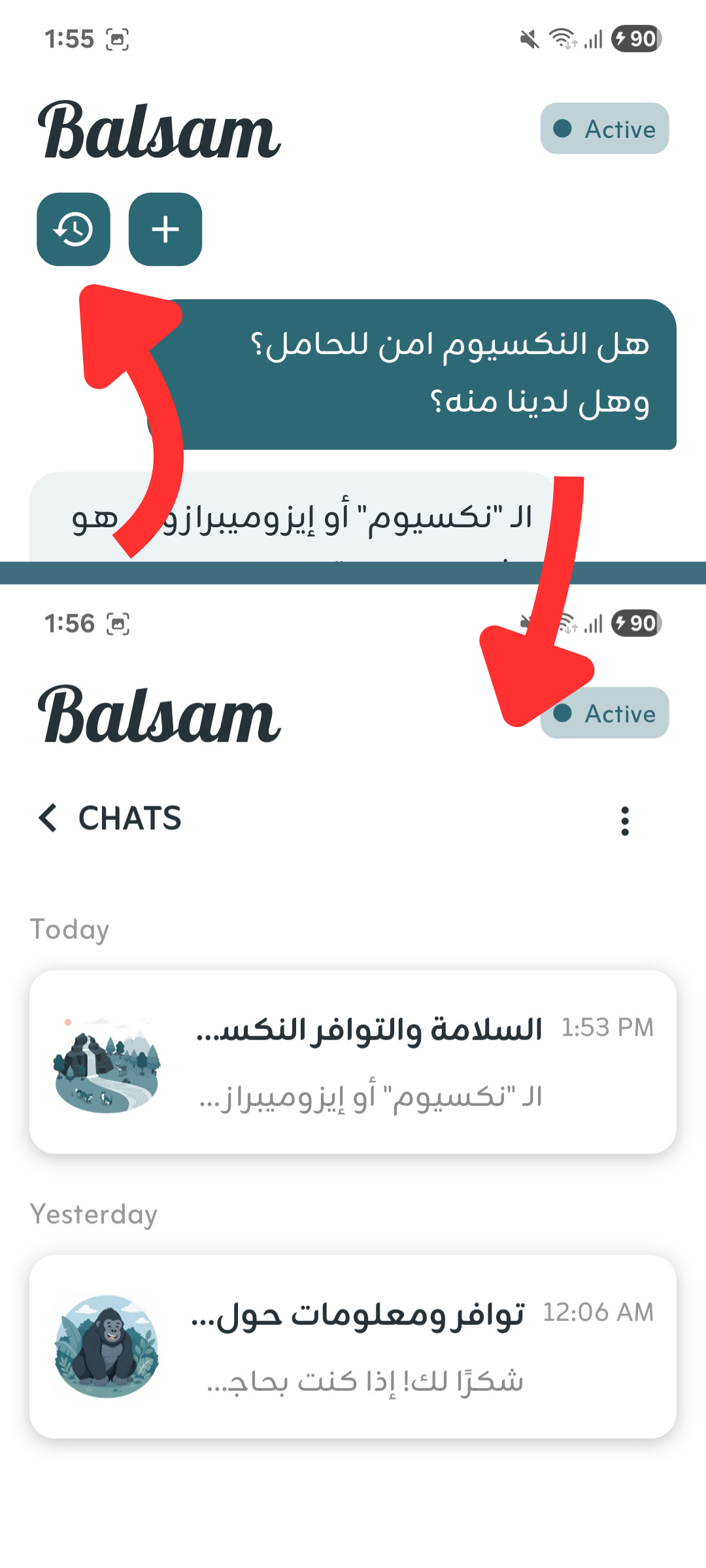
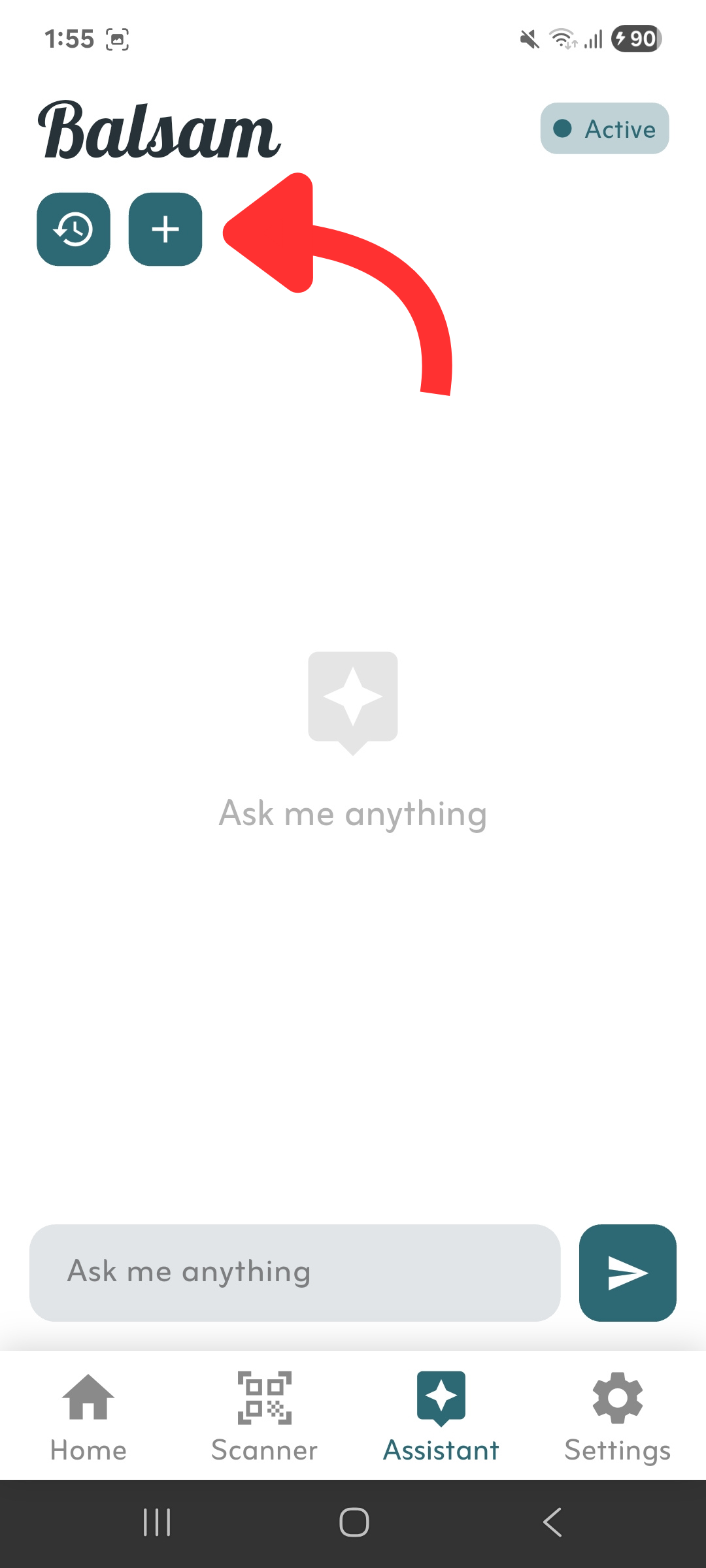
Tap the history icon at the top left of the Assistant screen to view all your previous conversations, grouped by date.
اضغط على أيقونة السجل في أعلى يسار شاشة المساعد لعرض جميع محادثاتك السابقة مرتبةً حسب التاريخ.
09
Start a New AI Chat
بدء محادثة جديدة
Tap the + icon at the top of the Assistant screen to start a fresh conversation with the AI at any time.
اضغط على أيقونة + في أعلى شاشة المساعد لبدء محادثة جديدة مع الذكاء الاصطناعي في أي وقت.
10
Create a Team
إنشاء فريق
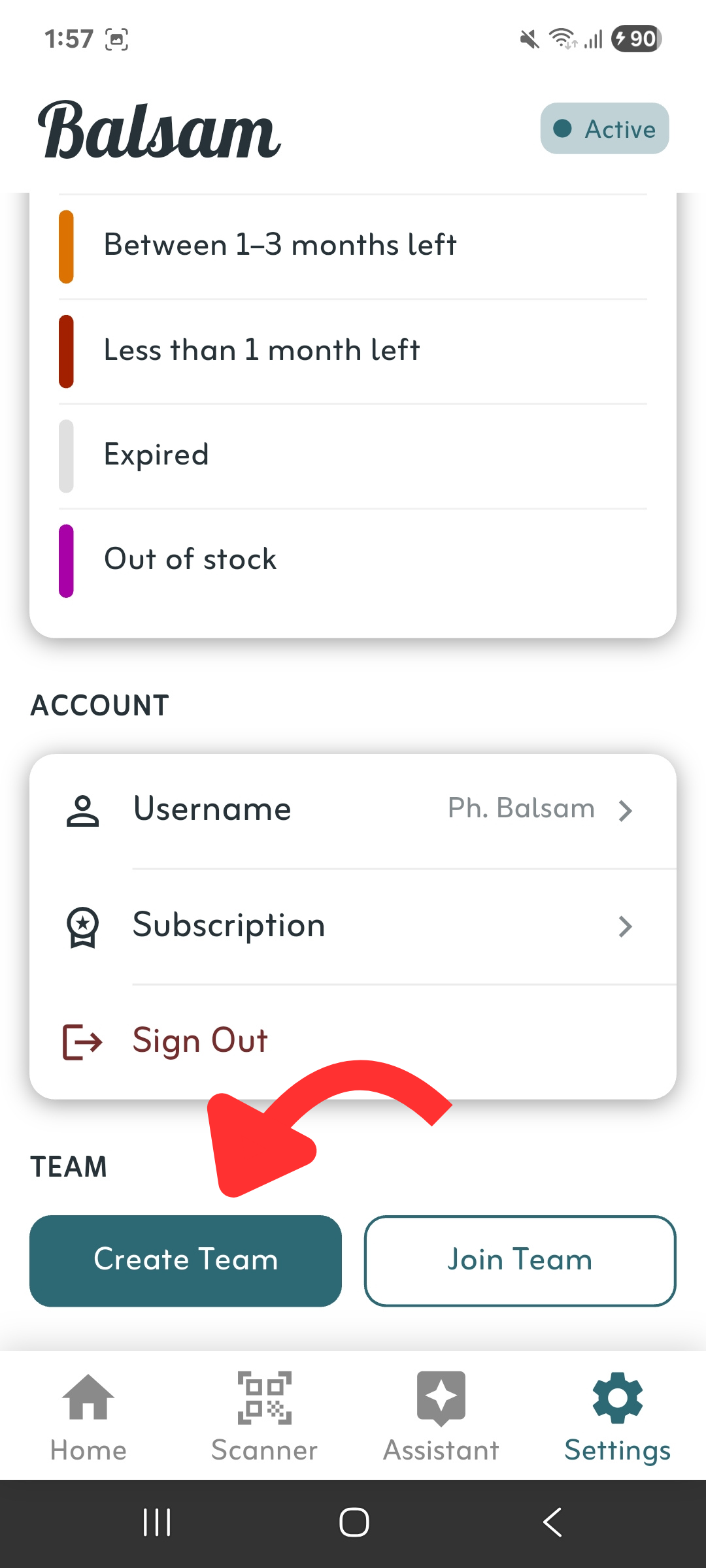
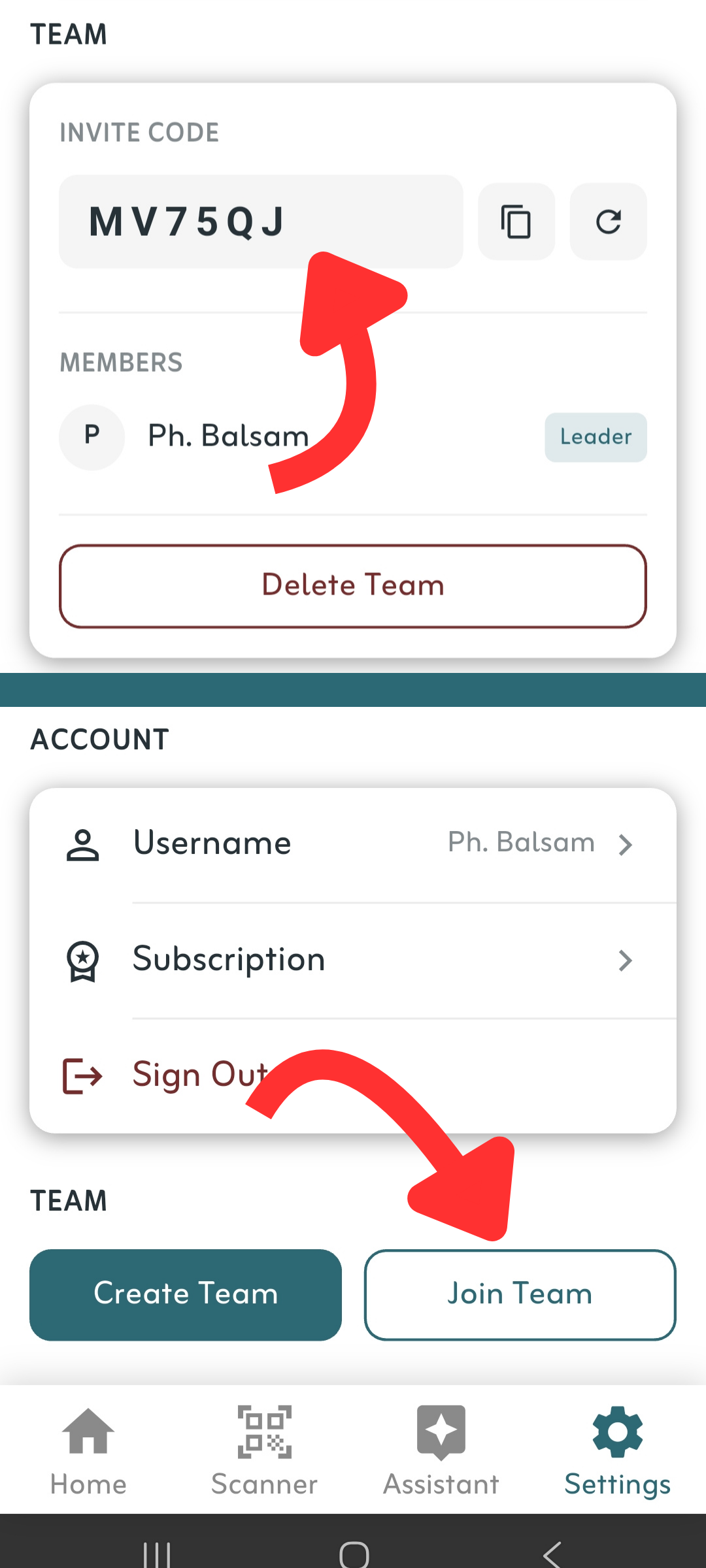
Go to Settings and scroll to the Team section. Tap Create Team to become a team leader. Share your invite code with your colleagues so they can join and access your shared inventory.
انتقل إلى الإعدادات وانتقل إلى قسم الفريق. اضغط على إنشاء فريق لتصبح قائداً للفريق. شارك رمز الدعوة مع زملائك حتى يتمكنوا من الانضمام والوصول إلى مخزونك المشترك.
11
Join a Team
الانضمام إلى فريق
Go to Settings and scroll to the Team section. Tap Join Team and enter the 6-character invite code provided by your team leader.
انتقل إلى الإعدادات وانتقل إلى قسم الفريق. اضغط على انضمام إلى فريق وأدخل رمز الدعوة المكون من 6 أحرف الذي يوفره قائد فريقك.